Routing calls to the right people
Goal: "Caregivers calling about callouts should reach scheduling, prospective clients should reach intake, and HR calls should stay private." Set it up once and let CareQB route every call.
Where: Settings → Agency Settings → phone routing rules, IVR rules, and User Groups. All are configured on a weekly calendar for each phone line.
Quick paths
| I want to… | Do this |
|---|---|
| Send all caregiver calls to the scheduling team during the day | Create a Schedulers user group → add an IVR ruleset for business hours → Default to: Schedulers, applied to Caregiver contacts |
| Offer "Press 2 for scheduling, 3 for billing" | IVR ruleset → map Press 2 and Press 3 to user groups |
| Keep HR calls private | Mark the HR user group Restrict recordings for this group? |
| Send a group's calls to an outside answering service | User group → Forward to external number? |
| Let callers reach me directly | Set your Extension (100–999) and enable extensions in the ruleset |
| Have a contact's next call come straight to me | Their chat → Reserve callback |
| Set up after-hours handling | Out of office & VoiceAI and When nobody answers |
| Change what callers hear | Call greetings |
How routing works
flowchart LR
  A[Call arrives on a CareQB line] --> B{Active ruleset for this line, time, and caller type}
  B -->|Forward / VoiceAI / voicemail| X[Handled before ringing]
  B -->|IVR menu or default group| C[Caller picks an option or dials an extension]
  C --> D[Eligible users' devices ring]
  D --> E{Each person's notification rules}
  E -->|Active| F[Rings]
E -->|Inactive or muted| G[Doesn't ring]- Call routing decides who is eligible for a call.
- Notification rules decide whether each person's devices actually ring. If someone has muted calls after 5 PM, no routing rule overrides that.
The menu is intentionally one layer deep. Callers pick once and get through. There are no nested menus.
1. Create user groups
A user group is a team that should receive certain calls, such as Schedulers, Intake, HR, or Billing.
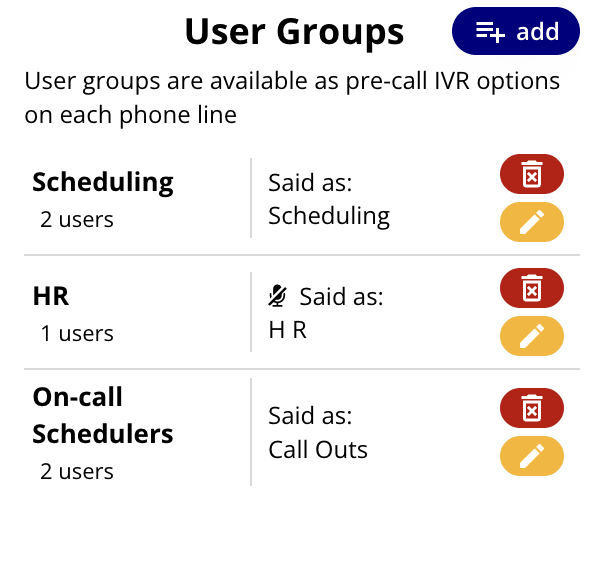
For each group, set:
| Setting | What it does |
|---|---|
| Internal label | The name your team sees in CareQB and on call records |
| External label | What callers hear ("Press 2 for scheduling") |
| Select users | Who's in the group |
| Ring time (in seconds) | How long the group rings before the call widens to everyone else eligible |
| Do not expand ring group after timeout | Keep the call with this group only, then go to voicemail |
| Forward to external number? | Send the call to an outside number (an answering service or another system). CareQB still logs the call, but you can't join it live once forwarded. |
| Send to voicemail immediately? | Skip ringing, for example a "leave a message for payroll" option |
| Forward to VoiceAI? | Let CareQB's VoiceAI answer this group's calls |
| Restrict recordings for this group? | Only group members (and Admins) can play recordings and read transcripts, for example HR with sensitive calls |
| Custom Voicemail Recording? | A group-specific voicemail greeting |
One group per function, not per day. You don't need "Monday Schedulers" and "Tuesday Schedulers". Make one Schedulers group and let each person's notification rules handle who's on when.
2. Build IVR rulesets on the calendar
Each phone line has a weekly calendar. Click New general ruleset (or click an existing block → Modify) and choose:
- From / Until: day of week and time. Drag blocks to move them, or drag the edge to change their length.
- (Optional) Apply to select contact types, such as Caregiver, Client, Prospect, Referrer, or Unlabeled callers. This lets known caregivers skip the menu while new callers hear options.
- What options should be offered?
- Press 2–8 for: a user group for each digit you want. Digits don't need to be sequential.
- Default to: a group that rings when the caller makes no choice. If they don't answer, the call widens to the rest of the team before voicemail.
- Require selection of a valid digit option: turns off the "press 0 to ring everyone" shortcut.
- Enable Extensions? or Disable Extensions? for this window.
- Create ruleset.
Save time with Copy to other day, Copy to other phone, and Duplicate ruleset → Select target days.
Overlaps: if two rulesets cover the same time, the most recently modified one wins.
Reserved digits
| Digit | Always means |
|---|---|
| 0 | Operator: ring everyone eligible on the line (unless you require a valid choice) |
| 1 | Clients hear their next 3 shifts read out (can be turned off) |
| 2–8 | Your user groups |
| 9 | Request a callback (when enabled; see When nobody answers) |
What your team sees
Even when a call only rings a certain group, everyone can still see it's happening:
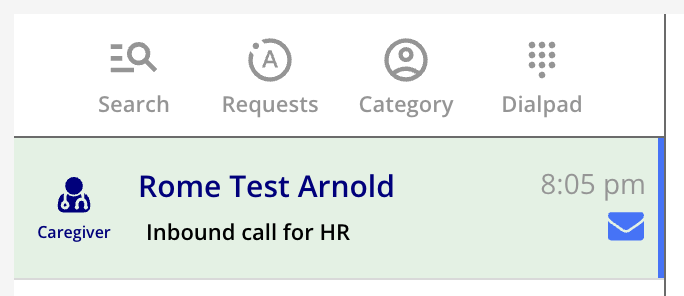
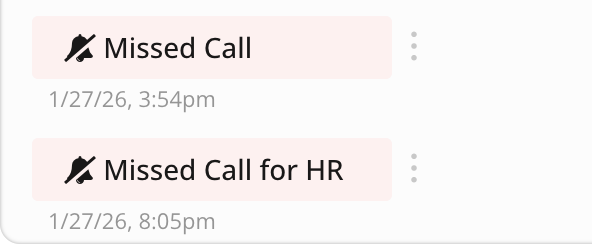
- A ringing call shows "for [group]" so you know who it's meant for.
- Missed calls and voicemails keep that label, so it's clear who should follow up even if no message was left.
3. Extensions
Extensions let callers reach one specific person.
- Format: 3 digits + # (for example
301#). Each user's extension is set in Agency Settings → users → Extension (100–999). - Turn them on or off per ruleset (time and line). Enable user-extensions by default sets the starting point.
- There is no dial-by-name directory. Callers only know an extension if you give it to them.
When someone dials an extension:
- CareQB says "Connecting to [first name]". If they mistype, they get one retry before the call goes to the whole team.
- Only that person's devices ring. Teammates can see the call but don't ring.
- If the person doesn't answer, the call goes straight to voicemail.
- The recording and transcript are restricted to that person (and Admins) by default.
Extensions respect notification rules. They ring even if your calls are inactive, but not if you've muted calls. In that case you get a silent notification.
Reserved callbacks
"I left a message for this caregiver. When they call back, I want it to come to me."
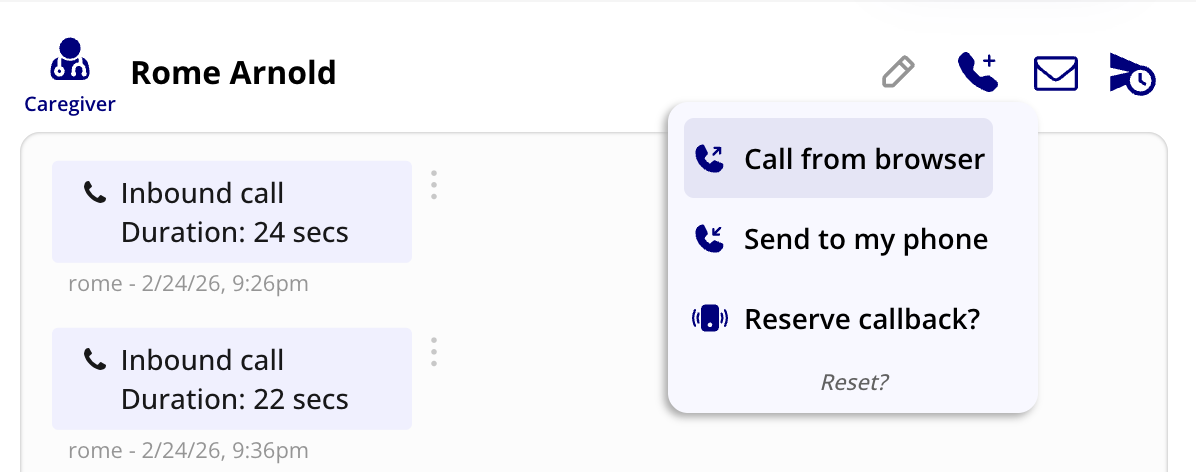
- Open the contact's chat and click Reserve callback.
- Choose who it's Reserved for and Hold for next: how many hours and minutes.
- Reserve Callback.
Their next call skips every routing rule and rings only you, just like an extension. The reservation ends when you answer the call (on desktop), when time runs out, or when you click Release Callback.
Restricting recordings & transcripts
Calls are restricted automatically when they go to an extension or a restricted user group. You can also restrict a call yourself:
- During a call (desktop): Restrict recording in the call panel.
- After a call: open the call → Restrict call recording.
Restricted calls still appear in the log, but only listed people and Agency Admins can play or read them. Use Grant access to add teammates or Remove restrictions? to open it back up.
Tips
- Create more groups instead of complicated exceptions. For example, add a "Last-minute callout" group on digit 8 rather than overloading Schedulers.
- Use caller types. Known caregivers go straight to scheduling, and unknown numbers hear the full menu.
- Check the result. Open Show ring list on any call to see exactly who was rung.