Getting set up for calls
Goal: "I want my calls to ring where I actually am." Set up the browser, the mobile app, a desk phone, or all three.
Where: Settings (top-right) → Audio devices, Your cell #, Setup Deskphone, and Notification settings
Quick paths
| I want to… | Do this |
|---|---|
| Take calls on my computer | Keep CareQB open in your browser and turn on call notification rules |
| Take calls on my phone | Install the CareQB app (iOS · Android) and allow notifications and calling permissions |
| Use a physical desk phone | Provisioning a desk phone |
| Switch to a headset or different speaker | Settings → Audio devices for desktop calls |
| Take calls over regular cell service (spotty internet) | Backup calling |
| Stop calls ringing after hours | Notification rules |
How CareQB delivers calls: simul-ring
When a call comes in, CareQB works out who is eligible to answer (from your agency's call routing and each person's notification rules) and rings all of their devices at the same time. Whoever answers first takes the call. Everyone else stops ringing and can see who's on it.
| Device | Best for |
|---|---|
| Browser | Office and desk work, when you're already in CareQB |
| Mobile app | On the go, field work, after-hours coverage |
| Desk phone | Reception desks, shared offices, people who like a handset |
You don't need to choose one device. If all three are active, they all ring.
Every call is a conference. That's why a teammate can join a live call from their own device, and why transfers keep everyone in the loop. See Transferring and sharing calls.
On the web (browser)
No plugins required.
- Receiving: an incoming-call panel opens on the right with the caller's name and a ringtone. Answer or ignore.
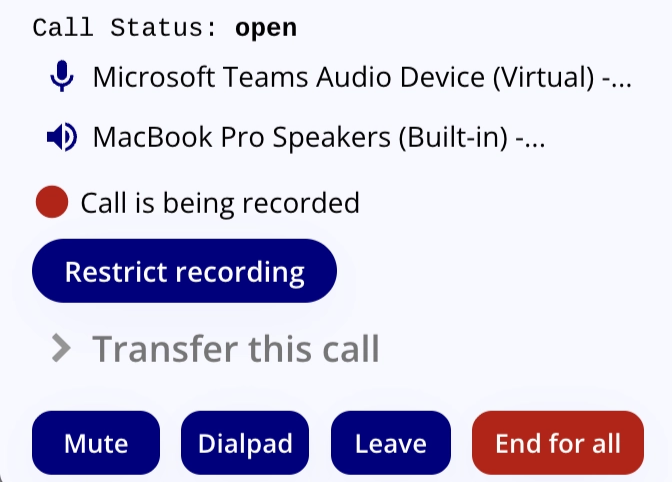
- During a call: Mute, Hold, Transfer this call, and Leave appear in the call panel at the bottom right and follow you across tabs.
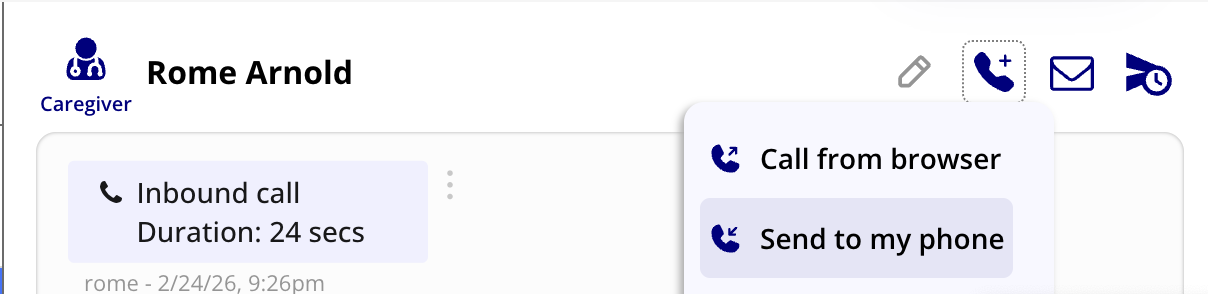
- Placing a call: in a chat, click the call icon → Call from browser. Or click call back in the call log on Home.
Choosing your microphone and speaker
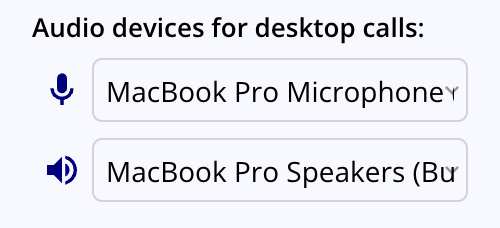
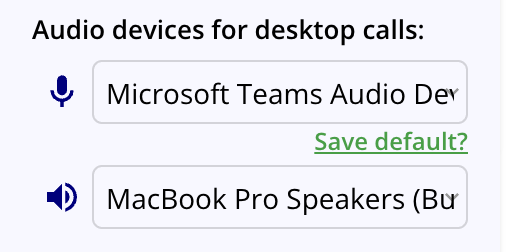
- Open Settings → Audio devices for desktop calls. CareQB uses your computer's defaults until you choose.
- Pick a different input or output. CareQB asks whether to Save default?, so you won't need to pick it again next time.
- During a call, click the device names in the call panel to switch on the fly.
Plugged in a new headset? Refresh the tab so it appears in the list.
Use Test Ringtone in Settings to check you can hear incoming calls.
Browser notes
- Microphone permission: your browser asks the first time. Safari may ask on every call unless you set CareQB's site setting to always allow. The mic is only live while you're connected to a call.
- Background tabs: CareQB keeps the tab awake so calls still ring. That's why you may see a "playing audio" icon on the tab.
- Desktop notifications: install the desktop app from install.page/careqb to get notifications in your computer's tray.
On your mobile phone
- Install CareQB from the App Store or Google Play.
- Allow notifications and phone/calling permissions when asked. Calls won't ring without them.
-
Add Your cell # in Settings. It's used for text alerts and for Send to my phone.
-
Receiving: calls show on your phone's normal call screen as "CQB – [caller]". If a teammate answers first, ringing stops and you get a notification saying who picked up.
- Placing a call: in a chat, tap the call icon → Call from the app. You can also call back from the call log on Home, or use the dialpad on the Chats screen. CareQB looks up matching contacts as you type.
- Poor signal? Choose Send to my phone. CareQB calls your cell over the regular phone network and connects you to the other person. They see your agency number, not your personal one.
On a desk phone
CareQB works with Polycom/Poly, Cisco SPA, Yealink, and Grandstream IP phones. Desk phones ring with your other devices, can dial out with your agency's caller ID, and include a company directory of your team. See Provisioning a desk phone.
Common setups
| Role | Typical setup |
|---|---|
| Office scheduler | Browser + desk phone during business hours, mobile after hours |
| Mobile-first coordinator | Mobile all day, browser when at a computer |
| Reception desk | Desk phone during office hours |
| On-call manager | Mobile with an on-call temporary notification rule |
Troubleshooting
| Problem | Check |
|---|---|
| Browser doesn't ring | Is a CareQB tab open? Are call notification rules active right now? Is DND on? |
| Caller can't hear me | Microphone permission allowed? Right input chosen under Audio devices? |
| Mobile app doesn't ring | Notification and calling permissions granted? Call notification rules active? |
| I answered on mobile and it hung up | Someone else answered first, the caller hung up, or the call went to voicemail. Normal with simul-ring. |
| Desk phone not registering | See troubleshooting in Provisioning a desk phone |
Related: Routing calls (IVR & extensions) · What happens when nobody answers